
All you need is a program to open your .txt file such as notepad and a photobucket account.
Here is a little guide before you start editing for those who have never worked with a custom template. I have added these comment tags to your templates to let you know where to add text and images. Also be sure to have your images resized I recommend images to be 500 pixels in width or smaller. you can go to picnik.com to easily resize and save images in your browser.


Uploading your template graphics and auction images
Now that your folder is unzipped you will see a folder titled 'images' you want to get this folder into your photobucket account. First log into photobucket and on the left menu you will see the section for 'Albums', under that 'add a new album' enter your new album name and save. You will now be directed to that album.
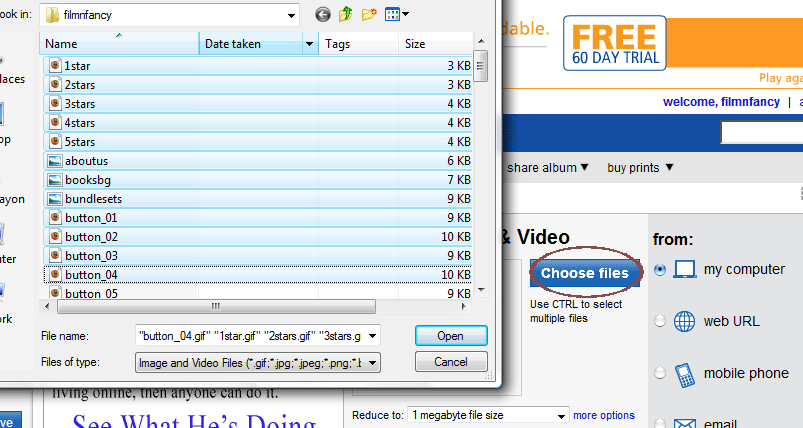
To begin uploading click the 'choose files' button and locate your IMAGES folder that is now in your unzipped folder. You can upload one at a time or to upload multiple images you can select the first file at top of the list and select the last one on your list to do a quick upload. (you may also select individual files and hit 'ctrl' on only images you want to upload.)
Now that our template images are uploaded we will need to place these images into our template.txt file. (Right click this file and open with notepad if it isn't open yet). Now we need the path to the photobucket folder if you don't know what it is just click the 'direct link' box under any of the files in your template album and right click inside the box and select copy. This is your image URL (You might have to hover over the image to see the direct link box -to always display this box click on the 'link options' and select 'always' under Show links in my albums.)

For this example I will be using http://img.photobucket.com/albums/v224/twiggsters/myimage.jpg
Yours will be whatever you just copied in the previous step

Now while in your template.txt notepad file we will go to the 'edit' tab and click on 'replace'. Enter TEMPLATEIMAGE with no spaces into the 'find what' box just like in the example. In the 'replace with' box paste the url from the previous step. We just need the path to the template album so erase the name of the image such as mypic.gif so it will look like this -be sure that it ends in a back slash :
http://img.photobucket.com/albums/v224/twiggsters/
Now save your notepad file (edit tab>save). Now your template is ready to edit with your info :)
note you should upload your auction listing image pics into a different album so you can delete those when your auction is done.
Editing your template.txt file
Now you can choose to either edit directly with my online editor (easiest way) or edit with notepad and follow the directions below.1. To edit in notepad open your template.txt file and all you need to do now is fill in the blanks. Look for the helpful START and STOP comments (Dont worry these comment tags do not appear in your template they are only there to guide you on what to edit) You can delete my premade text such as 'your description goes here' and 'your shipping info goes here' and replace it with your own. You may also edit this text in ebays editor instead of notepad.

2. Edit the images - I always add 3 sample image place holders for your templates. Feel free to erase one or erase them all. Remember to copy the direct link code under the image and paste that between the quotations. here is an extra image holder if you need to add more:
3. To preview your template copy your whole code (go to edit>select all and again edit>copy) then paste your code into the textarea below and click 'test the code'. (it might look smooshed in some browsers, just use the scrollers to look around)
Saving your file (optional)
4. Now that you finished your template you may want to save in case ebay or your computer freezes before you get to put it up. (Make sure to save as .txt)
Placing your template into ebay
5. This is the last step and it's pretty easy. When you go to sell your item you will get the keep it simple or customize option be sure to check CUSTOMIZE.

Now in your 'Create your listing' page Just copy your final template and paste it into ebay's description lister MAKE SURE YOU HIT THE HTML TAB NOT THE STANDARD.
note: You can also change your descriptions, policies, delivery details ect. by hitting the standard tab and directly inputting the text into the template. Hit preview to make sure everything looks right and you're all done! You can keep re-editing this file as long as you want.

Other helpful tags
note: If you would like to change the colors for some of the codes below, heres a link to a helpful color page to choose a different color.
dividers- edit the width and color to match your template.
Lists/Bullets- Heres a helpful code, use lists in your templates to describe item specs or whatever else! If you need more items just copy and paste the li tags.
- list item 1
- list item 2
- list item 3
- list item 4